Add subtitles to your video
Subtitles are essential for making your videos accessible to a wider audience, including non-native speakers and the hearing-impaired. Luckily, Camtasia Audiate makes it easy.
How to add subtitles to a video
Subtitles are essential for professional, accessible content. Follow these three simple steps to add subtitles to your video:
1
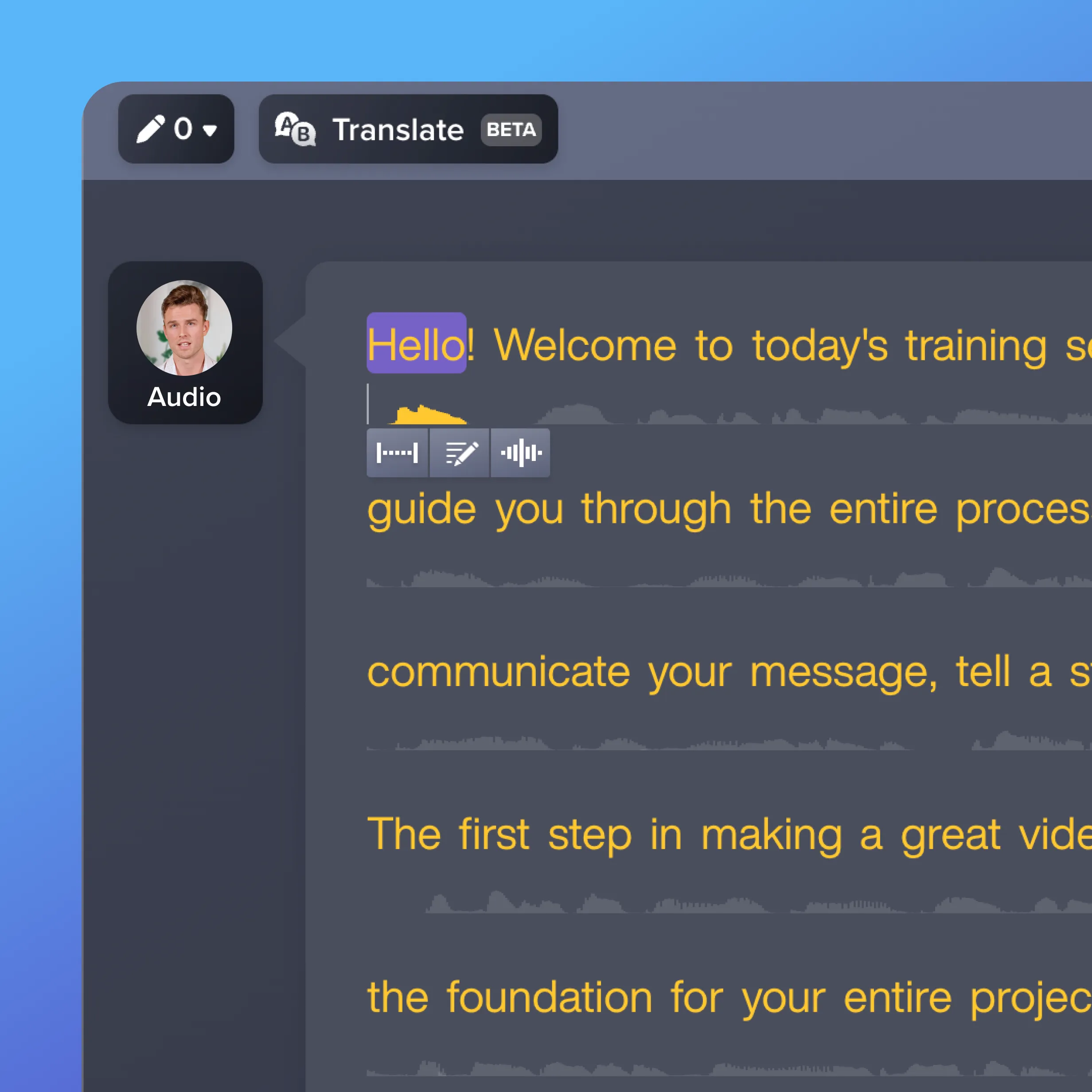
Step 1: Import your video into Camtasia or Audiate
Start by importing your video file into Camtasia or Audiate. In Camtasia, select the speech-to-text captions feature to transcribe the audio into subtitles. When uploaded to Audiate, the video is automatically transcribed into text. The transcription is quick and accurate, giving you a solid foundation for your subtitles.
2
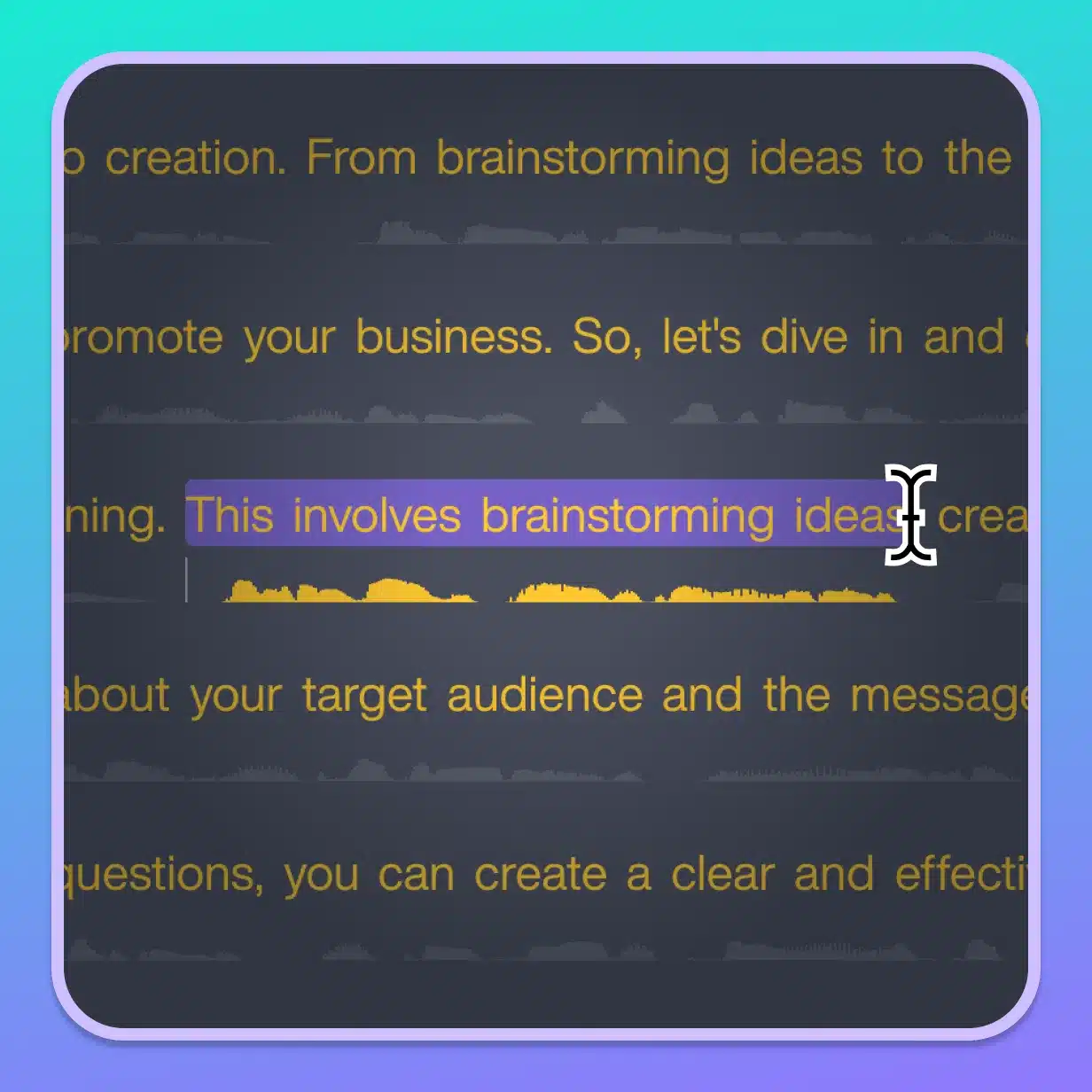
Step 2: Edit and translate the subtitles
After transcription, review the generated subtitles to ensure accuracy. You can easily make any edits to match the tone and content of your video. For global audiences, Audiate allows you to translate the subtitles into multiple languages, accommodating viewers from different regions.
3
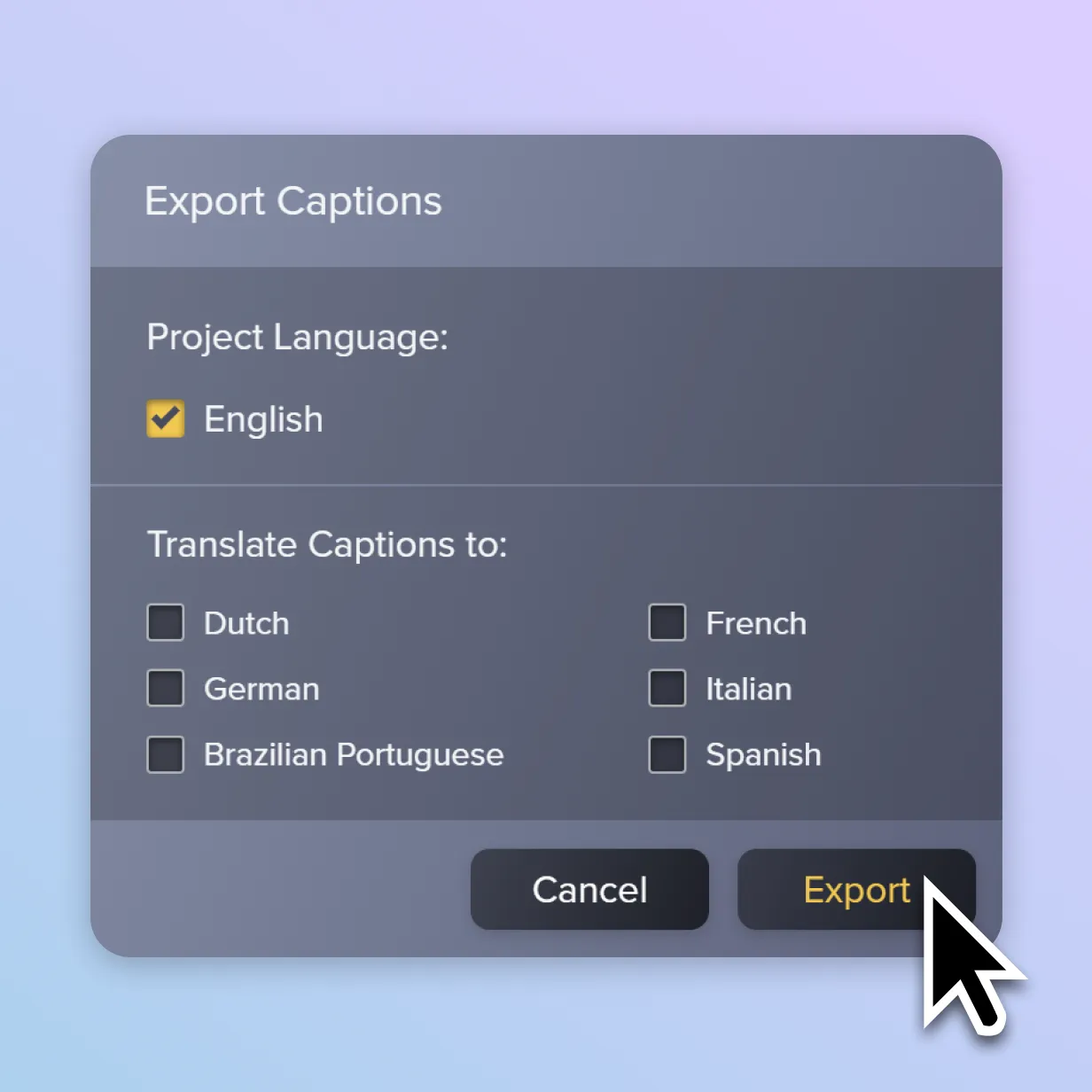
Step 3: Export and add the subtitles to your video
Once you’ve edited and translated the subtitles, export the final text file or integrate it directly into your video using Camtasia. Your video is now ready to be shared with accurate, professional subtitles in one or more languages.
Camtasia Audiate makes video subtitles easy
Camtasia Audiate provides several advantages to adding subtitles, making it the best tool for ensuring your videos are accessible and engaging.
Automatic speech-to-text transcription
Audiate’s speech-to-text feature automatically transcribes audio into accurate captions, saving you time and effort. This is ideal for creators who need to quickly generate subtitles for their videos without manual typing.
Multilingual subtitles
Camtasia Audiate allows you to translate subtitles into multiple languages, making your content accessible to a global audience. With the ability to provide subtitles in various languages, you can easily reach viewers worldwide.
Seamless editing and customization
Audiate’s editing tools make it easy to customize subtitles for accuracy and style. Whether adjusting timing, correcting translations, or fine-tuning text, you have complete control over your captions to ensure they align perfectly with your video.
Get started with Camtasia Audiate
FAQ
Simply upload a video to transcribe the audio, edit the subtitles for accuracy, and export or add them directly to your video. The process is easy and subtitles automatically get transcribed so you don’t have to painstakingly write them yourself.
Yes, Audiate allows you to quickly translate subtitles into multiple languages, making your content accessible to a global audience. When releasing videos to global platforms, like social media, creating multilingual content can give creators a leg up from others.
Yes! Audiate’s speech-to-text feature automatically transcribes your video’s audio into subtitle text, saving you time on manual typing. The transcription happens in real time so you can focus on making sure it matches your audio perfectly.
Absolutely. Audiate provides easy-to-use editing tools that allow you to correct, adjust, and customize your subtitles to fit your content perfectly. Once you add the subtitles to your video, the video editing software also allows for precise editing so your subtitles are placed exactly where you need them.
Yes, Camtasia Audiate makes it easy to download the subtitle file as a .srt file so you can upload it anywhere. Having a subtitle file is important to maximize the accessibility of the created subtitles in your content.
Yes, Audiate works with various video formats, allowing you to add subtitles to any video file format with ease. This means that you can add your subtitles to YouTube videos, social media videos, onboarding videos, and almost anything else. Camtasia Audiate offers flexibility like no other.
Yes! Subtitle options make videos accessible to a wider audience, including non-native speakers and the hearing-impaired. It’s a practice that is important for accessibility, and Camtasia Audiate can create them for you.
Current Camtasia customers have a few options for moving up to the Camtasia Pro plan for avatar generation. Customers on a current Camtasia Essentials or Create subscription can upgrade to Camtasia Pro in their TechSmith account by following these steps.
Camtasia customers on a perpetual license or Legacy Subscription can contact our Customer Care team for assistance moving their license to a Camtasia Pro subscription.Customers with a standalone Audiate subscription can contact our Customer Care team for assistance with converting their existing Camtasia license and Audiate subscription to a Camtasia Pro subscription.
Check out our tutorial that will walk you through everything you need to know.
Still can’t find what you need? Contact us and we’ll help you out.