


Screenshot website
Capture a whole website screenshot with Snagit’s scrolling capture feature.
Screenshot a whole webpage with Snagit
Capturing an entire website, including everything that’s out of view, is easy with Snagit. Just follow these three simple steps:
1
Step 1: Open Snagit
Launch Snagit, and click the capture button when the All-in-One capture type is selected.
2
Step 2: Start the capture process
Open the webpage you want to screenshot. Click on an orange arrow and scroll either horizontally or vertically until you’ve captured everything.
3
Step 3: Save and share
Once the capture is complete, it’ll open in the Snagit Editor. Copy to clipboard or download the screenshot, and you’re done!
Create screenshots easily with Snagit
Snagit offers a range of screen capture benefits you won’t find in a basic screenshot tool.
Vertical scrolling capture
Capture vertical scrolling content like a website—no need to take multiple screenshots and stitch them together ever again.
Horizontal scrolling capture
Capture horizontally scrolling content like an Excel sheet and make data shareouts with your team a breeze.
Edit your screenshots
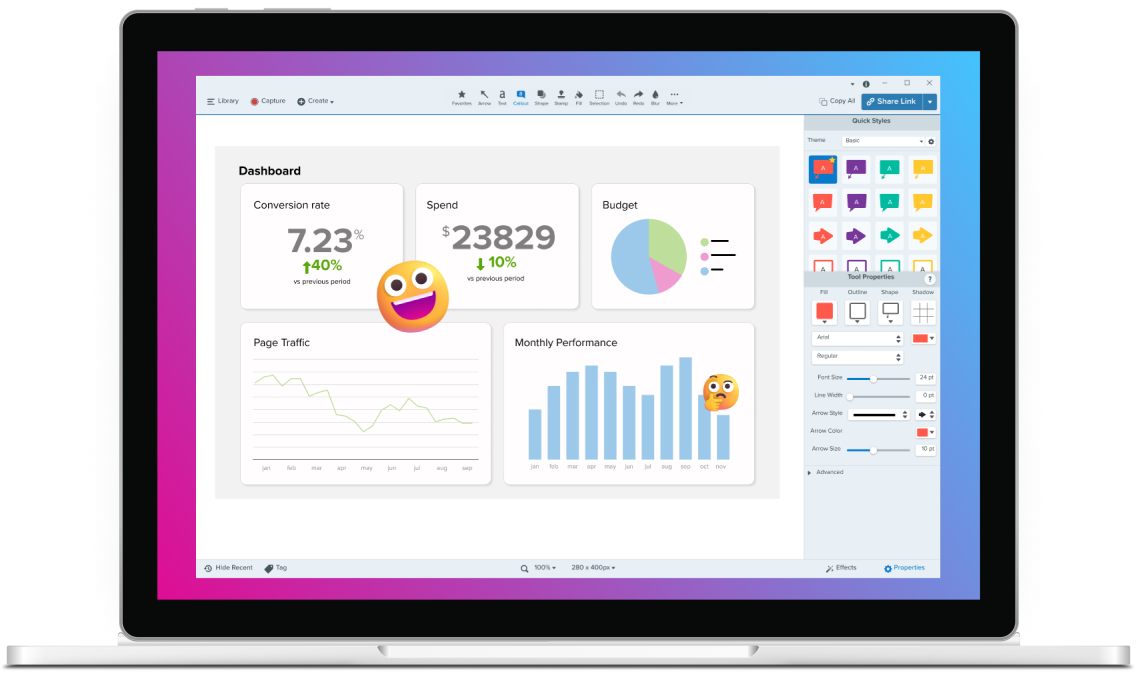
Add annotations, stamps, callouts, and more to your screenshots to clearly and quickly share information.
Get started with Camtasia Snagit
FAQ
Yes, Snagit can automatically scroll both vertically and horizontally to screencap full-size pages, no matter how large or complex the page is. Scrolling screenshots allow you to screenshot the webpage you want to capture from the corner of your screen to any width or height.
Yes, Snagit can capture screenshots of different web page options in any browser. As long as you have Snagit installed on your machine, you can screenshot a scrolling webpage on Google Chrome, Microsoft Edge, Firefox, etc.
Absolutely. Snagit saves metadata like the website URL and capture date, making it easy to organize, archive, and find your captures later. By saving the screenshot in the library, you can access a full page with lots of information easily. You can refer back to this whenever you need.
Yes! Snagit allows you to set up custom hotkeys and presets, enabling you to capture full webpages with a single keystroke for faster, more efficient work. This is super helpful when you need to capture multiple pages quickly. Just switch tabs and repeat the process again and again in just a few clicks.
Yes! To save a full-page screenshot, click save under the file menu and download the screenshot on your computer easily. This works for any type screenshot. Your screenshots are also saved to your Snagit Library automatically where you can organize them in folders and using tags.
Absolutely. After capturing the full webpage, you can use Snagit’s built-in editing tools to annotate, highlight, or add callouts to specific areas. This makes it easy to provide feedback or emphasize important content on the captured image.
You can also crop and trim your screenshot if you captured more than you need. Edit captured screenshots easily with Snagit.
Yes, as long as you’re logged into the website through your browser, Snagit can capture the content. It’s also capable of handling dynamic content, such as pages with auto-updating elements or embedded media.
A tip: Scroll slowly so that Snagit can capture everything.
Creating screenshots is easy with Snagit! Snagit offers manual scrolling capture for greater control, or if the orange arrows do not appear for automatic scrolling.
Click and drag your mouse to select a region of the webpage to capture, then click the scrolling capture button in the all-in-one toolbar. Use the window scroll bars or mouse wheel to manually scroll the content you want to capture.
Use Snagit’s scrolling webpage option to screenshot webpages in their entirety. You can capture them horizontally or vertically without needing to stitch together multiple screenshots later on. Snagit ensures a clean, crisp screenshot every time. Plus, you don’t need to waste time editing!
Check out our tutorial that will walk you through everything you need to know.
Still can’t find what you need? Contact us and we’ll help you out.