


Voice translator
Create multilingual content with Camtasia Audiate’s powerful, AI-powered voice translator—the best all-in-one video translation tool for scaling content creation across different languages.-
English
-
Spanish
-
German
-
French
Translate in 7 languages with dialects. Your selected voice stays consistent across languages.
Translate video content in seconds with AI-powered tools
With Camtasia’s AI video translator, you can:- Auto-generate translated subtitles or full AI dubbing with lip sync via new audio narration in the translated language and AI voices
- Export subtitles as SRT files or overlay them in-app
Camtasia Audiate turns your voice recordings into global-ready content using advanced AI video translation. With just a few clicks, you can generate natural-sounding AI voice dubs in different dialects, create synced subtitles, and even localize content without relying on expensive agencies.
Whether you’re making YouTube videos, training videos, or podcasts, this tool helps content creators expand their reach to a global audience—faster and more affordably than ever before.
How to translate voice recordings easily
Translating voice recordings and videos in Camtasia Audiate is super simple:
1
Step 1: Import your files
Upload your file directly into Audiate, or right-click the audio track in your Camtasia project and choose ‘Edit in Audiate.’ The audio will be transcribed automatically.
2
Step 2: Translate the text
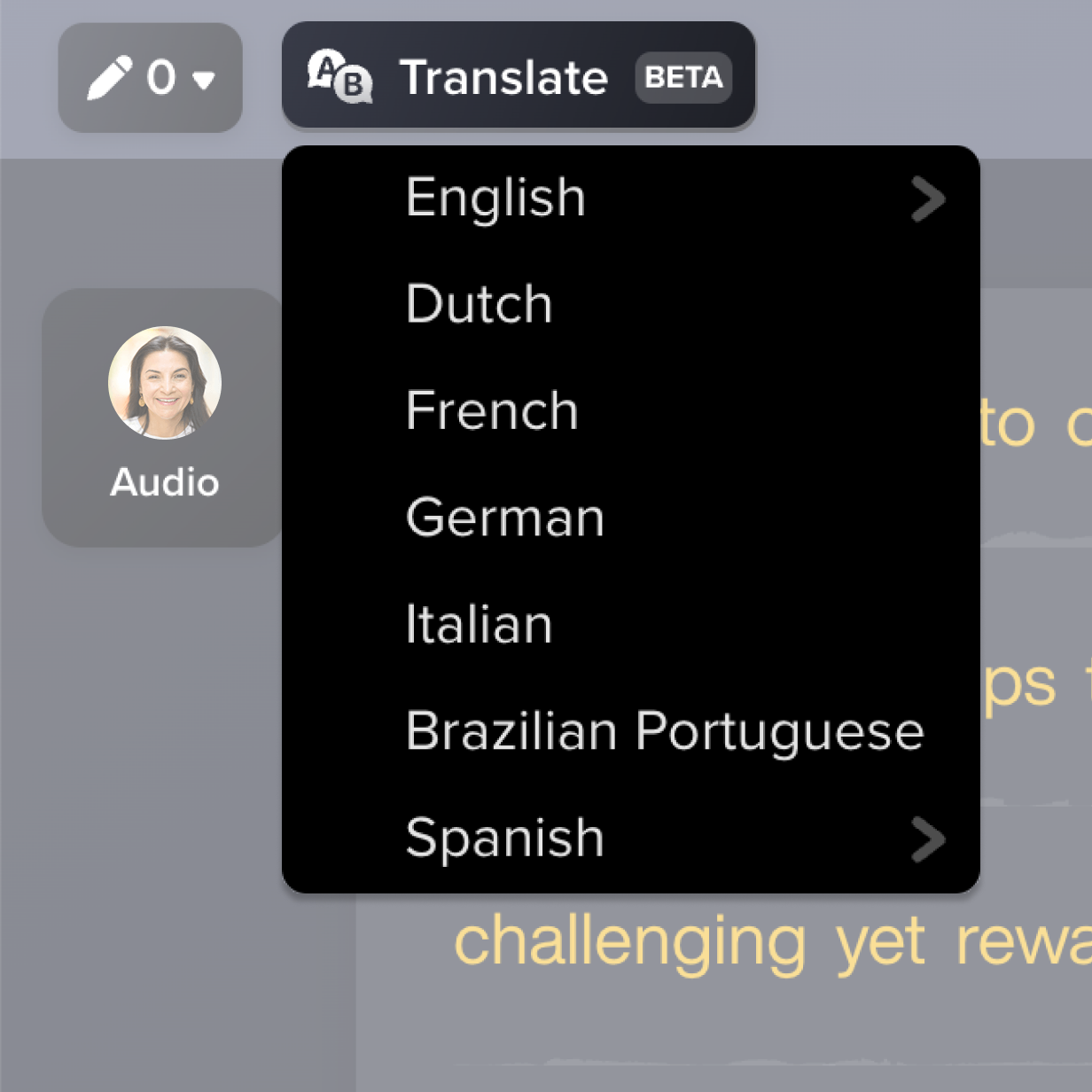
Click the Translate button, choose your target language or dialect, and generate your high-quality AI voice output. Camtasia automatically handles text-to-speech and lip sync to help you transcribe the audio quickly.
3
Step 3: Edit, and export
Edit if needed and export your file once you’re done!
Translating is easy with Camtasia Audiate
Camtasia Audiate simplifies translation, offering powerful features that save time and streamline your workflow.
Fast and accurate translation
Audiate uses AI to deliver quick, reliable translations—much faster than traditional agencies or voice-over artists.
Integrated workflow with Camtasia
Send your Camtasia projects directly to Audiate without jumping between tools, keeping your workflow efficient and focused.
Reach global audiences
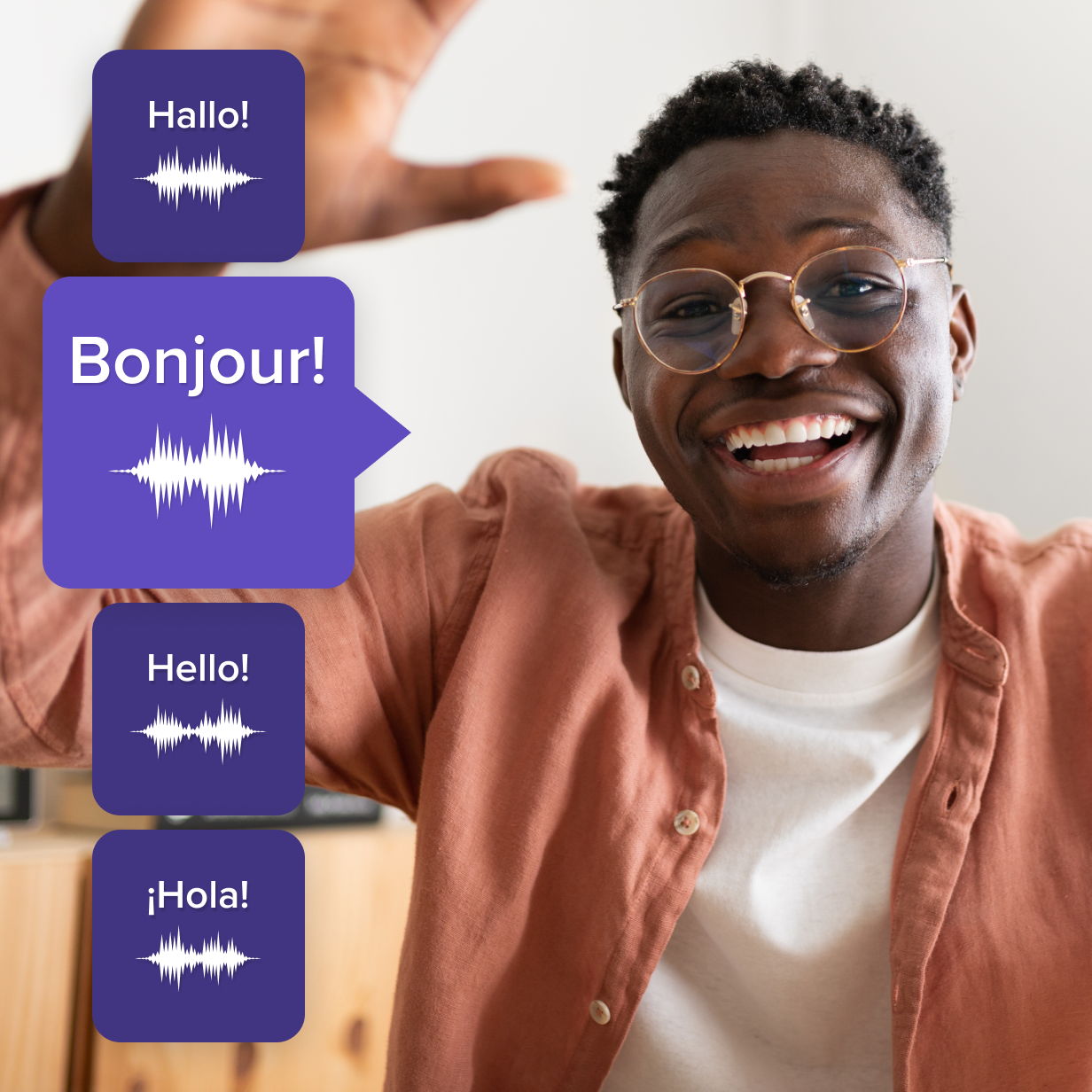
Localize a single recording into multiple languages for training, YouTube, or social media—making your content accessible to audiences worldwide.
Get started with Camtasia Suite

FAQ
Yes. Audiate lets you review and edit the translated script and voice-over to ensure it fits your message and tone. With its text-based editing, you can modify individual words or entire phrases, and Audiate will automatically update the transcript and regenerate the voice recording accordingly. Say goodbye to language barriers and take control of your content.
Audiate supports MP3, WAV, and MP4 files. You can also send Camtasia video projects directly to Audiate for a seamless workflow. This flexibility allows you to combine different files into one cohesive project and export them as a single file for easier sharing and collaboration.
Audiate supports a variety of languages and dialects, including English, French, Dutch, German, Italian, Brazilian Portuguese, and Spanish. Translated text can be reused across different projects, helping you connect with global audiences.
Yes. If you’re working in Camtasia, you can send your project to Audiate for real-time voice translation, streamlining the process. Alternatively, you can upload any audio file directly into Audiate to translate it independently. The text-based editor makes it easy to follow and refine translations as you go.
Audiate’s AI translation tools are significantly faster and more cost-effective than agencies for multilingual content creation. With built-in dubbing, subtitles, and text-to-speech, it’s one of the best AI solutions for turning an original video into localized content for international viewers fast.
Absolutely! Audiate is ideal for podcasts. You can generate multilingual audio files, translate subtitles, and even export content to your YouTube channel or TikTok audience. It’s a fast, cost-effective way to grow reach.
If you’re on a Camtasia Essentials or Create subscription, you can upgrade to Camtasia Pro through your TechSmith account. If you have a perpetual license or Legacy Subscription, contact our Customer Care team to switch to a Camtasia Pro subscription.
If you have a standalone Audiate subscription, reach out to our Customer Care team. They’ll help you convert your existing Audiate and Camtasia licenses into a Camtasia Pro subscription.
Still need help? Contact us and we’ll be happy to assist.
Check out our tutorial that will walk you through everything you need to know.
Still can’t find what you need? Contact us and we’ll help you out.