


Automatically redact data in screenshots
Smart Redact in Snagit makes it easy to blur and redact private information like emails, phone numbers, and credit card details.
SMART REDACT IN SNAGIT
How to use Smart Redact
With just a few clicks, your screenshots are ready to share.
1
Step 1: Open your image
Take a screenshot or open your image in the Snagit Editor.
2
Step 2: Apply Smart Redact
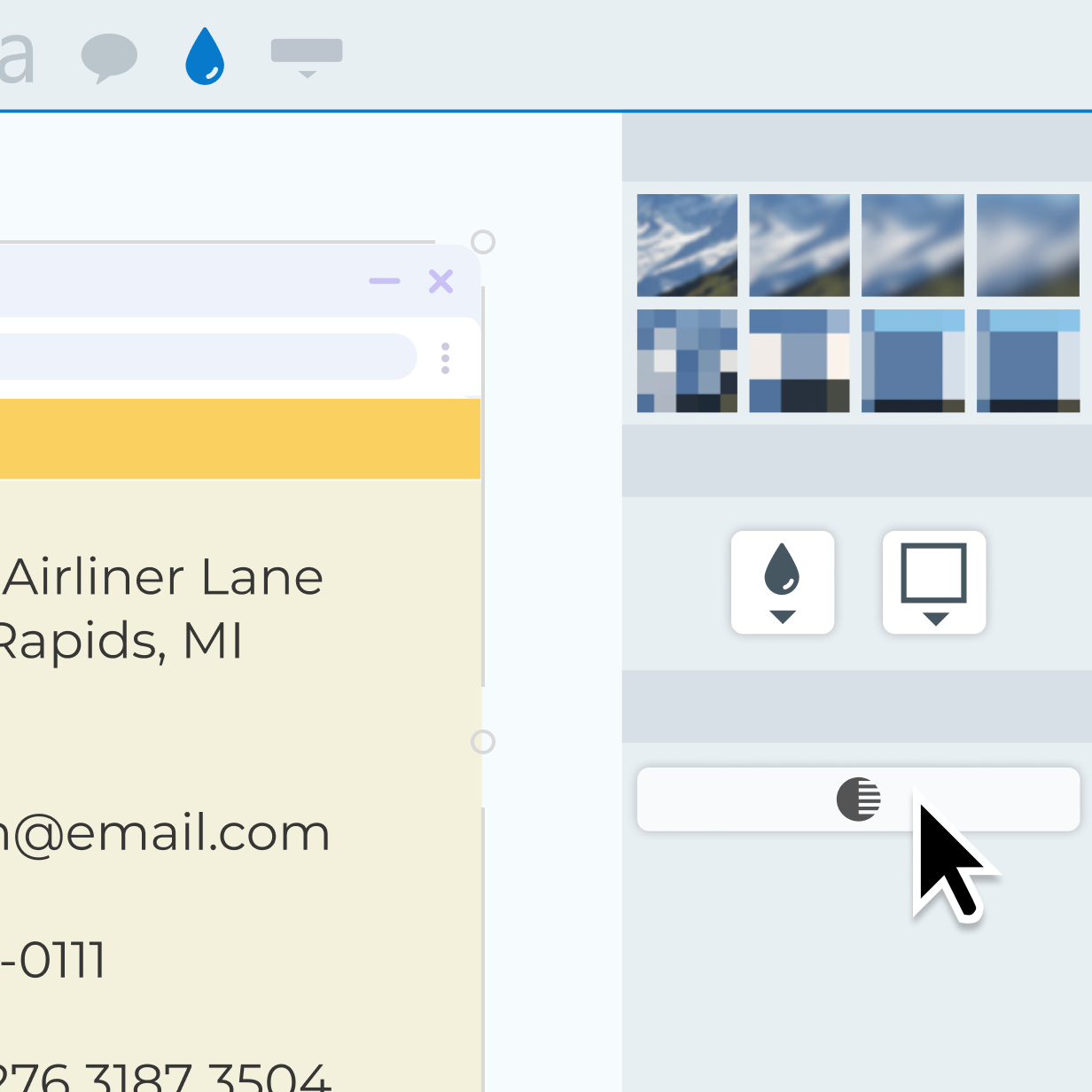
In the Blur tool’s properties panel, click the Smart Redact button, and Snagit will instantly scan for sensitive data.
3
Step 3: Customize your redaction
Toggle the specific data types you want to redact to only obscure what you need to with a blur, pixelation, or black bars.
Why use Snagit to redact screenshots?
Protect privacy without wasting time or effort.
Save time and effort
No more manually combing through screenshots to find and redact sensitive information. Smart Redact does it for you in seconds.
Ensure data security and privacy
Keep sensitive information like credit card numbers, emails, and social security numbers hidden.

Collaborate confidently
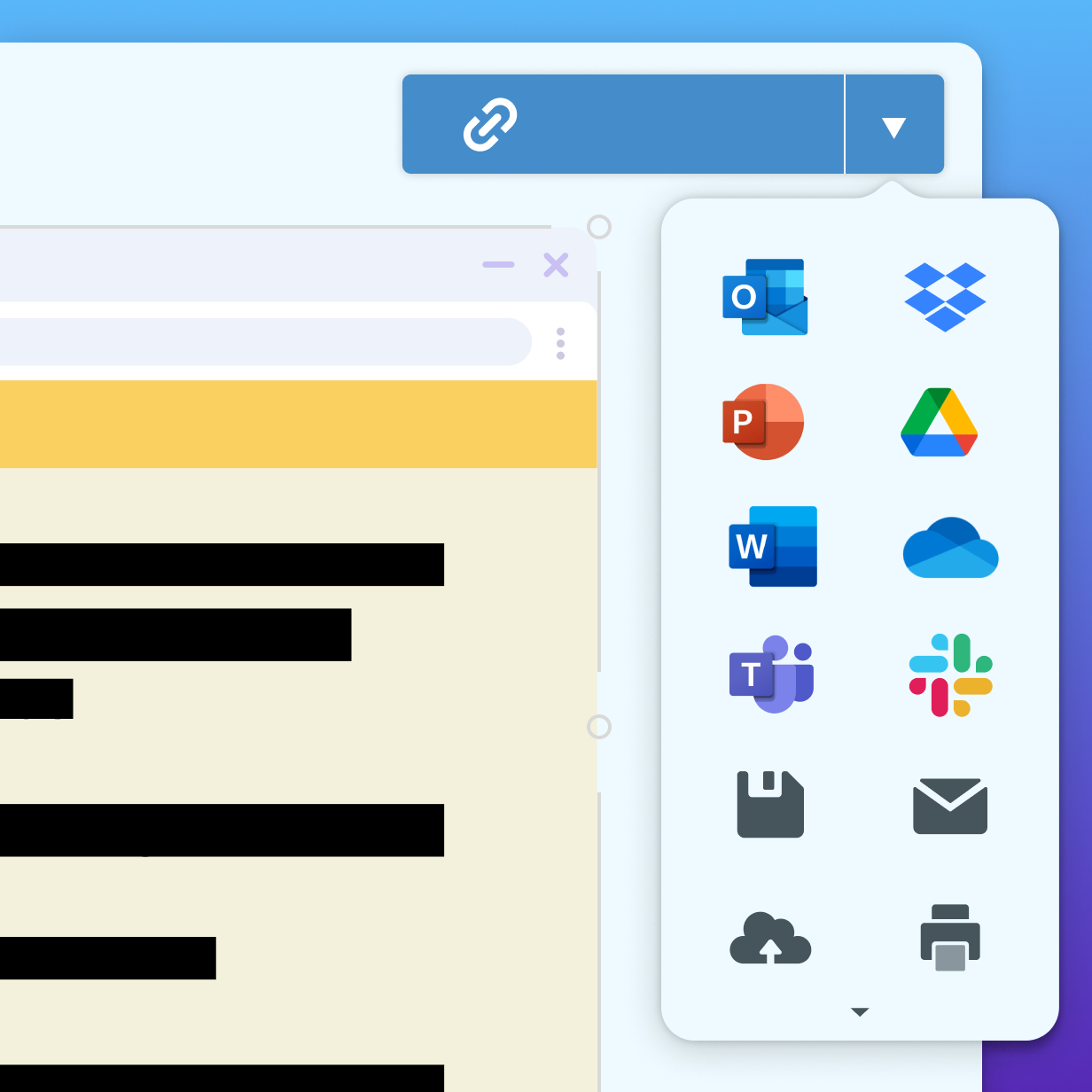
Smart Redact ensures sensitive information is securely obscured, so you can send screenshots without worrying about privacy breaches.
Get started with Camtasia Snagit
FAQ
Smart Redact automatically detects addresses, credit card numbers, dates, emails, faces, IP addresses, phone numbers, social security numbers, and URLs.
Absolutely! You can toggle specific data types on or off, giving you full control over what gets covered.
Yes! As long as the image is loaded in the Snagit Editor, Smart Redact will analyze it for sensitive data.
Yes! Snagit lets you adjust redactions before finalizing your image to ensure accuracy.
Check out our tutorial that will walk you through everything you need to know.
Still can’t find what you need? Contact us and we’ll help you out.