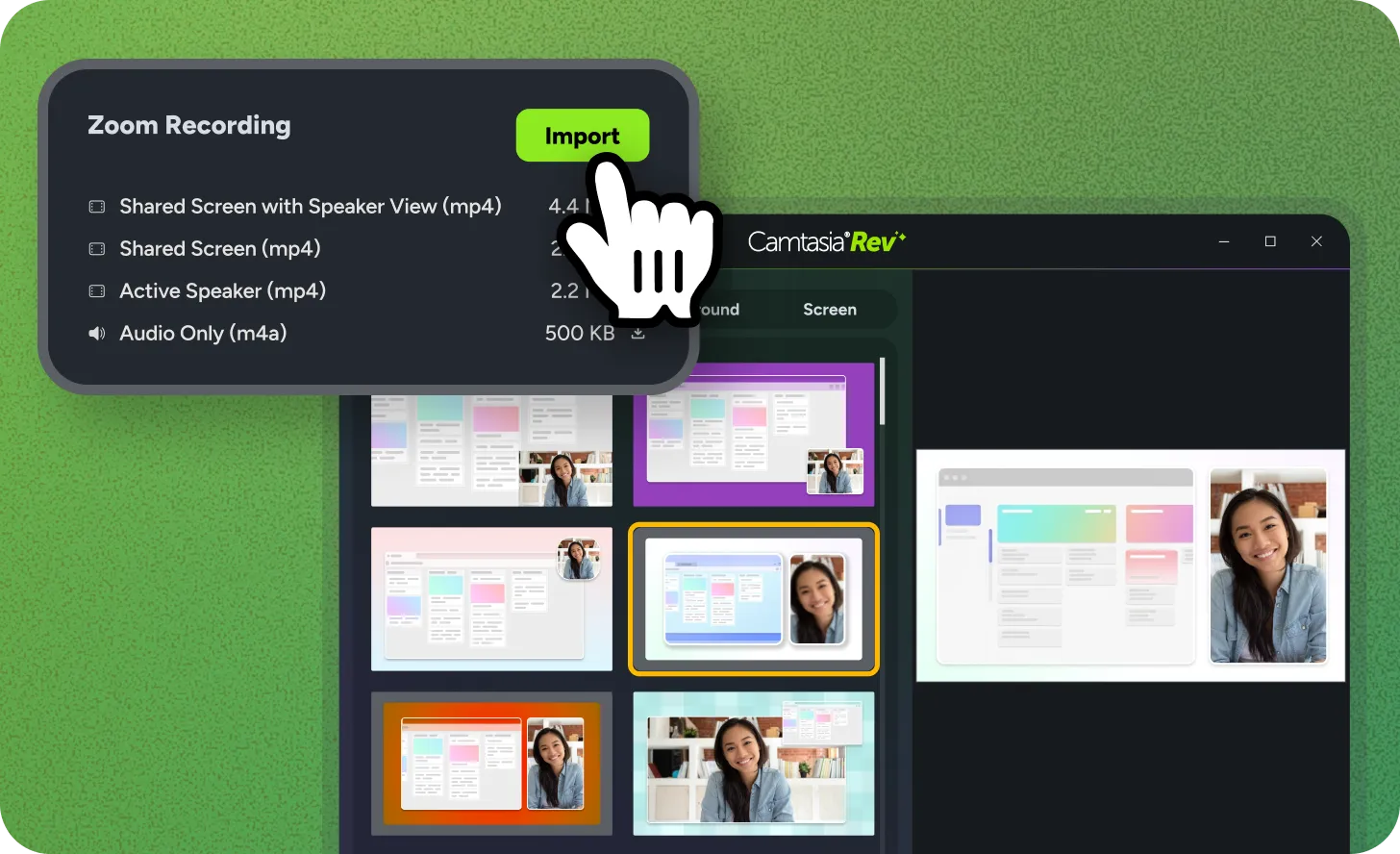
Zoom Recording Import
Turn your Zoom recordings into professional tutorials without the manual effort. Connect your Zoom account to Camtasia Editor to pull recordings directly into your bin. Use the Rev workflow to automatically apply layouts, remove backgrounds, and polish your video in seconds.
Ready to try it for yourself?
View Tutorial
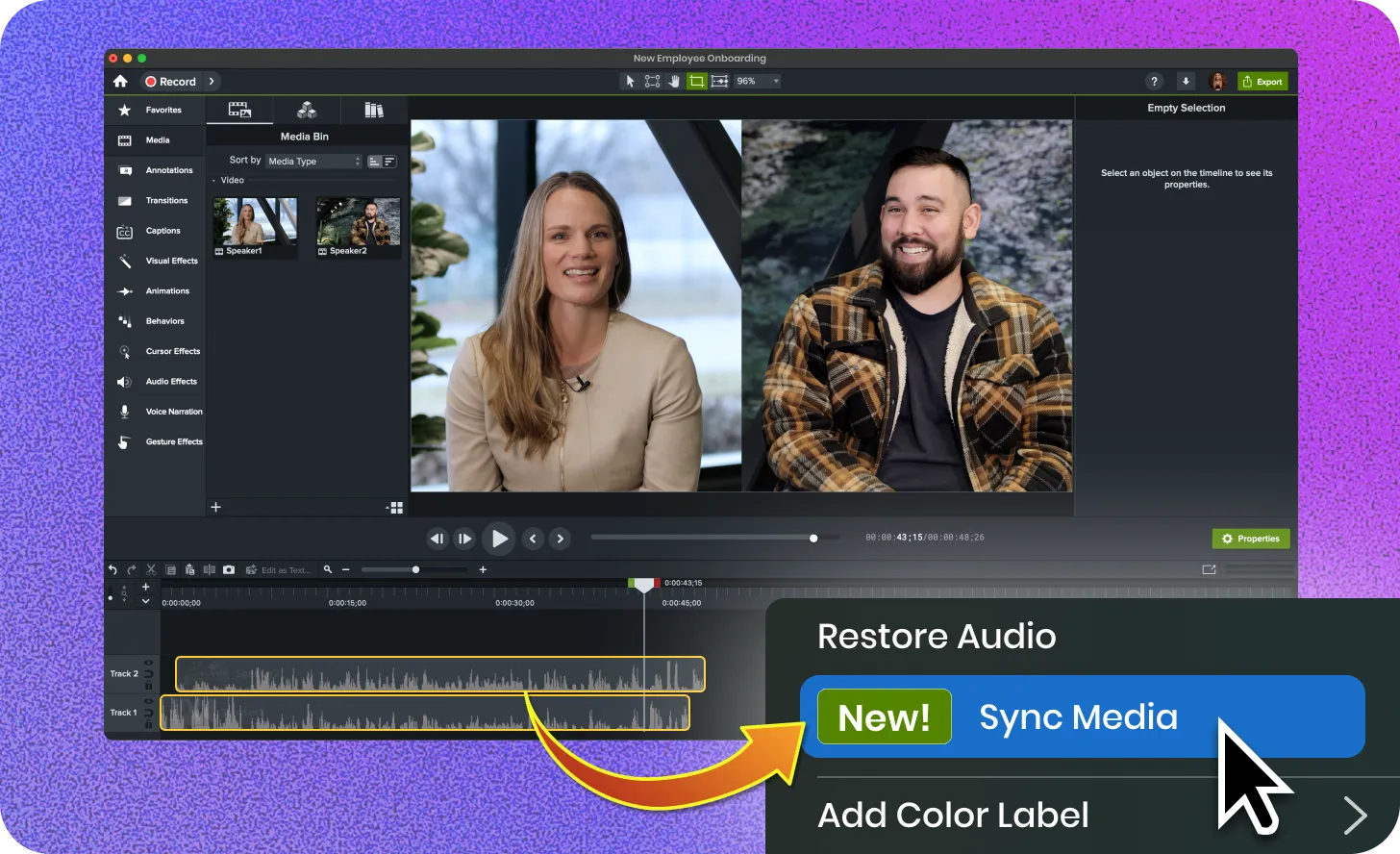
Auto Sync Media
Keep multiple camera feeds in perfect alignment. Use the Auto-Sync Media feature to match tracks based on their audio signatures. This tool eliminates the need for manual seeking. It ensures your tutorials and demos remain professional and accurate.
VTT Caption Import and Export
Move captions between tools without retyping a single word. Camtasia now supports VTT file imports and exports. Use this industry-standard format to sync your scripts with external video platforms and save time on manual entry.
Ready to try it for yourself?
View Tutorial
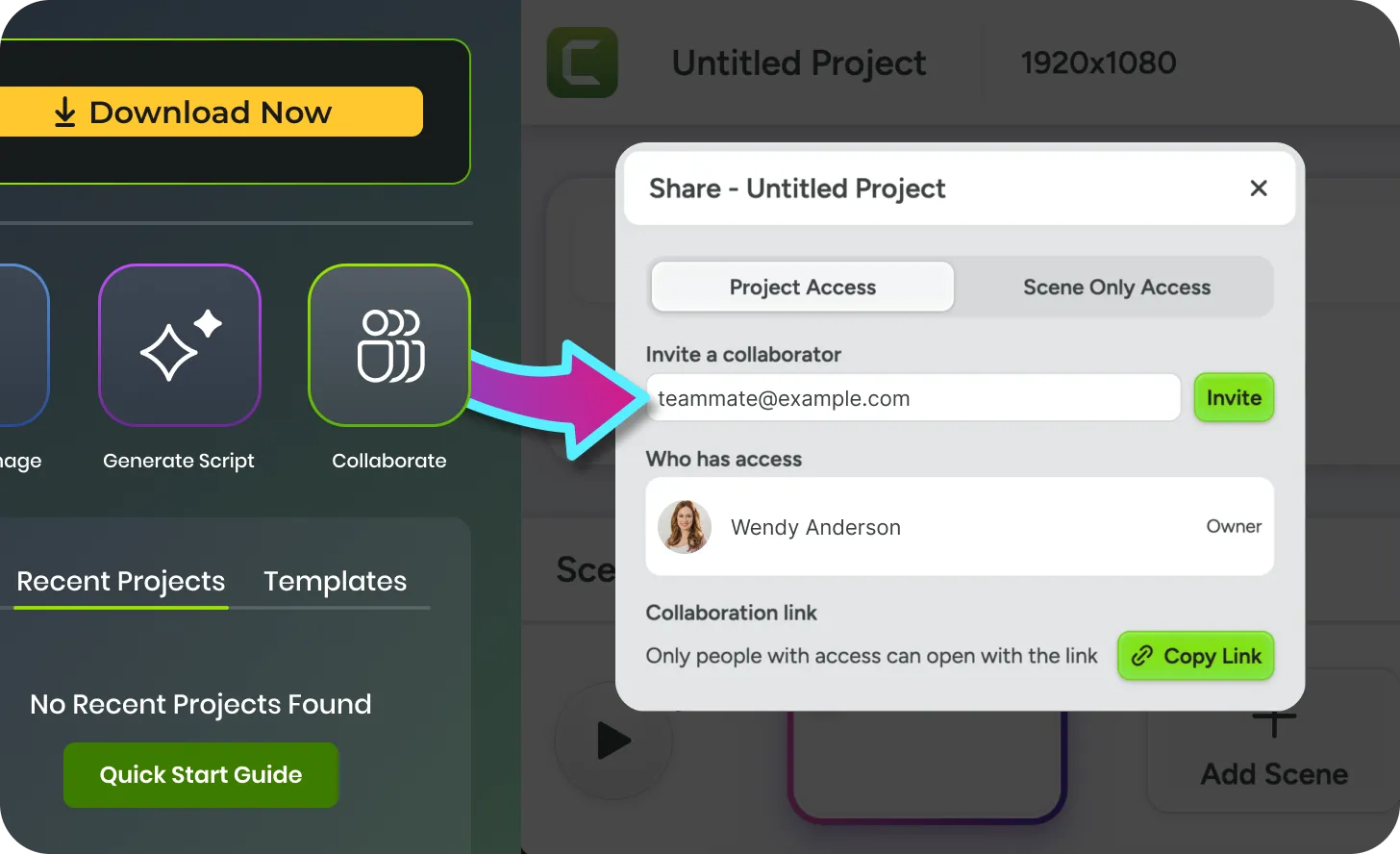
Collaborative Recording
Gather content from your team without the back-and-forth. Use the Collaborate button in Camtasia Online to send a recording request to your subject matter expert. Once they finish, import their footage directly into Camtasia Editor. Add your final polish and professional effects in one streamlined workflow.
Ready to try it for yourself?
View Tutorial
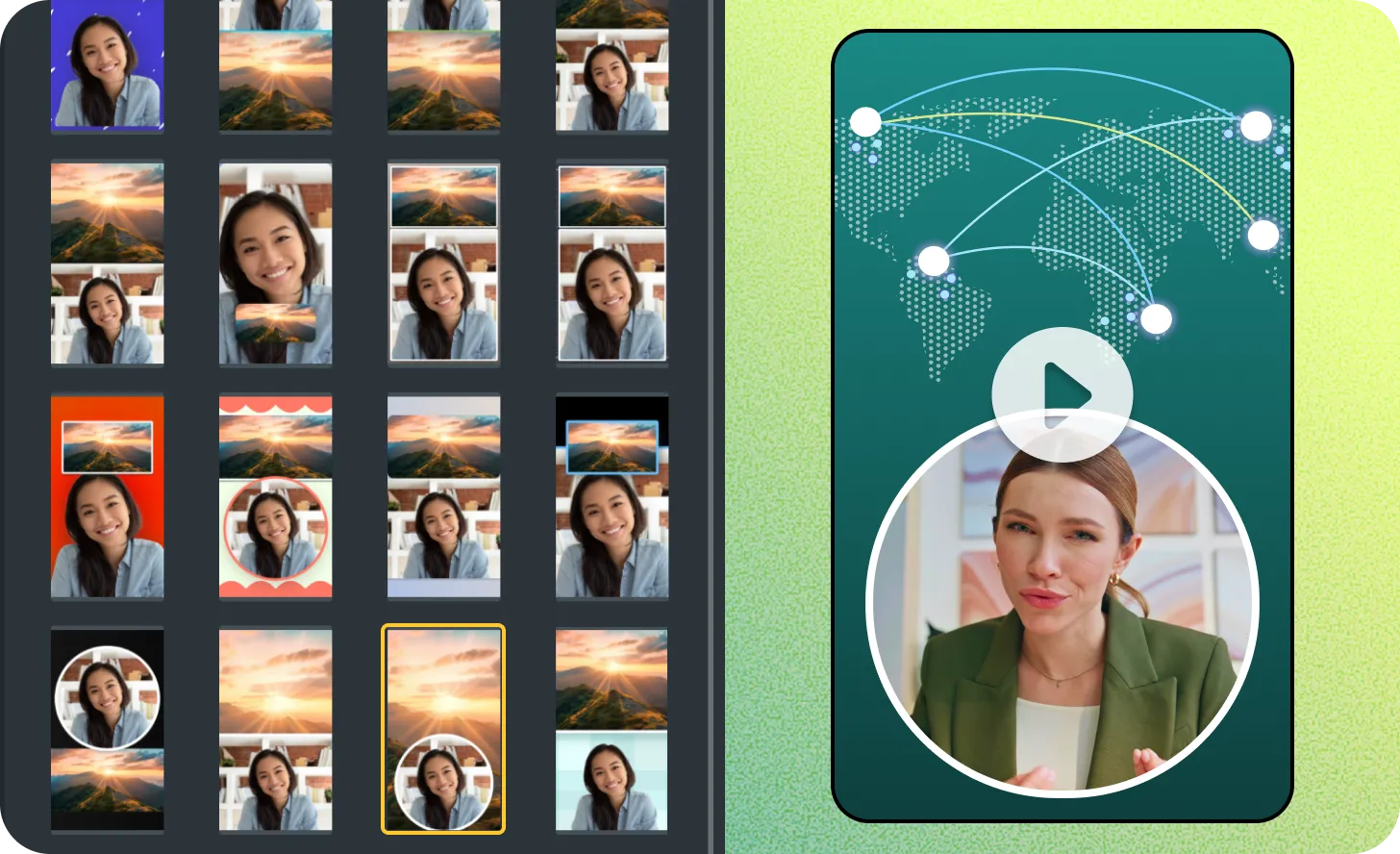
Vertical Looks in Rev
Turn your desktop recordings into vertical videos instantly. The Rev workflow now includes dedicated layouts for portrait-oriented content. Choose a look that fits your brand and let Camtasia handled the framing. Use these templates to reach your audiences on the devices they use most.
Ready to try it for yourself?
View Tutorial
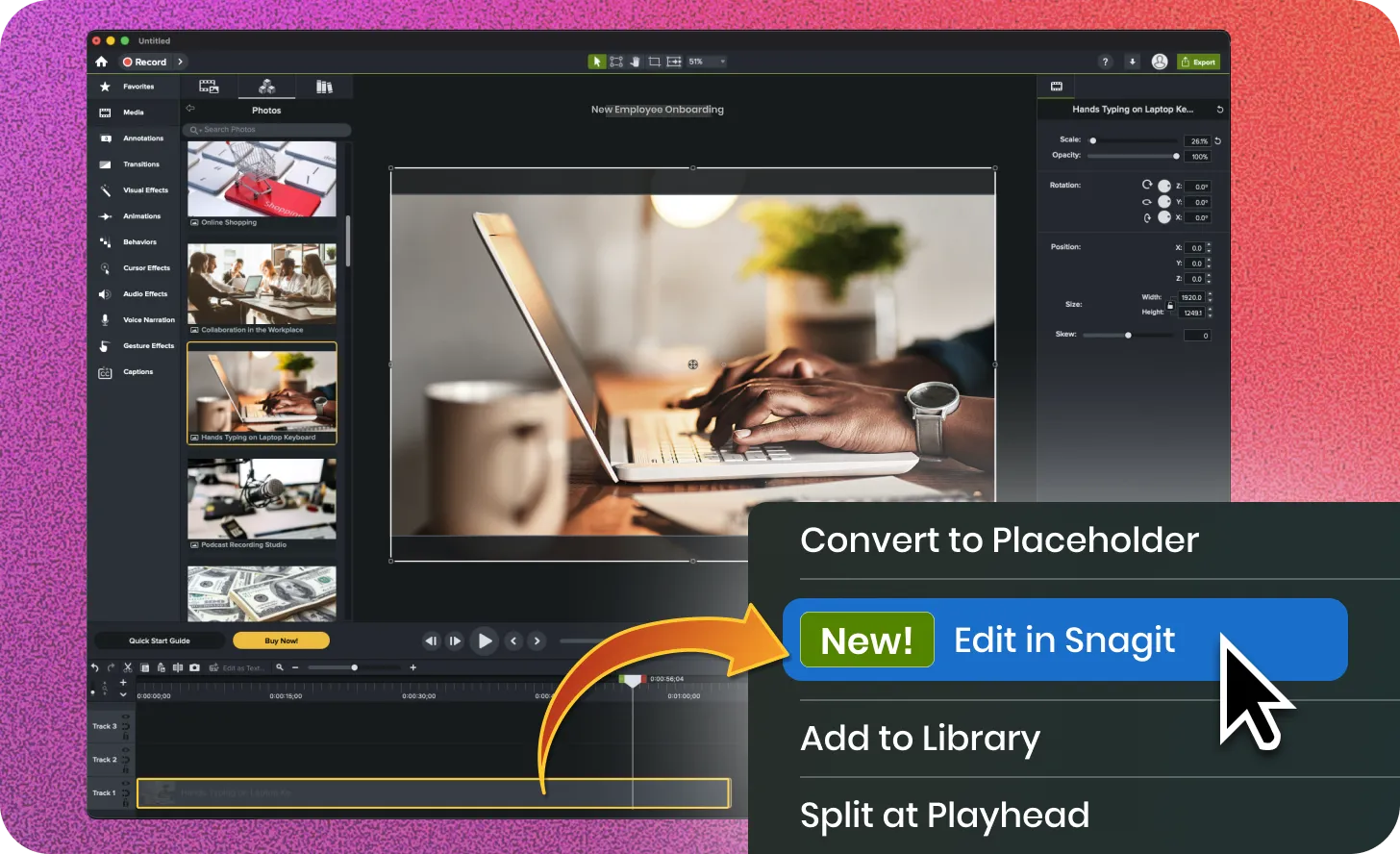
Edit in Snagit from Timeline
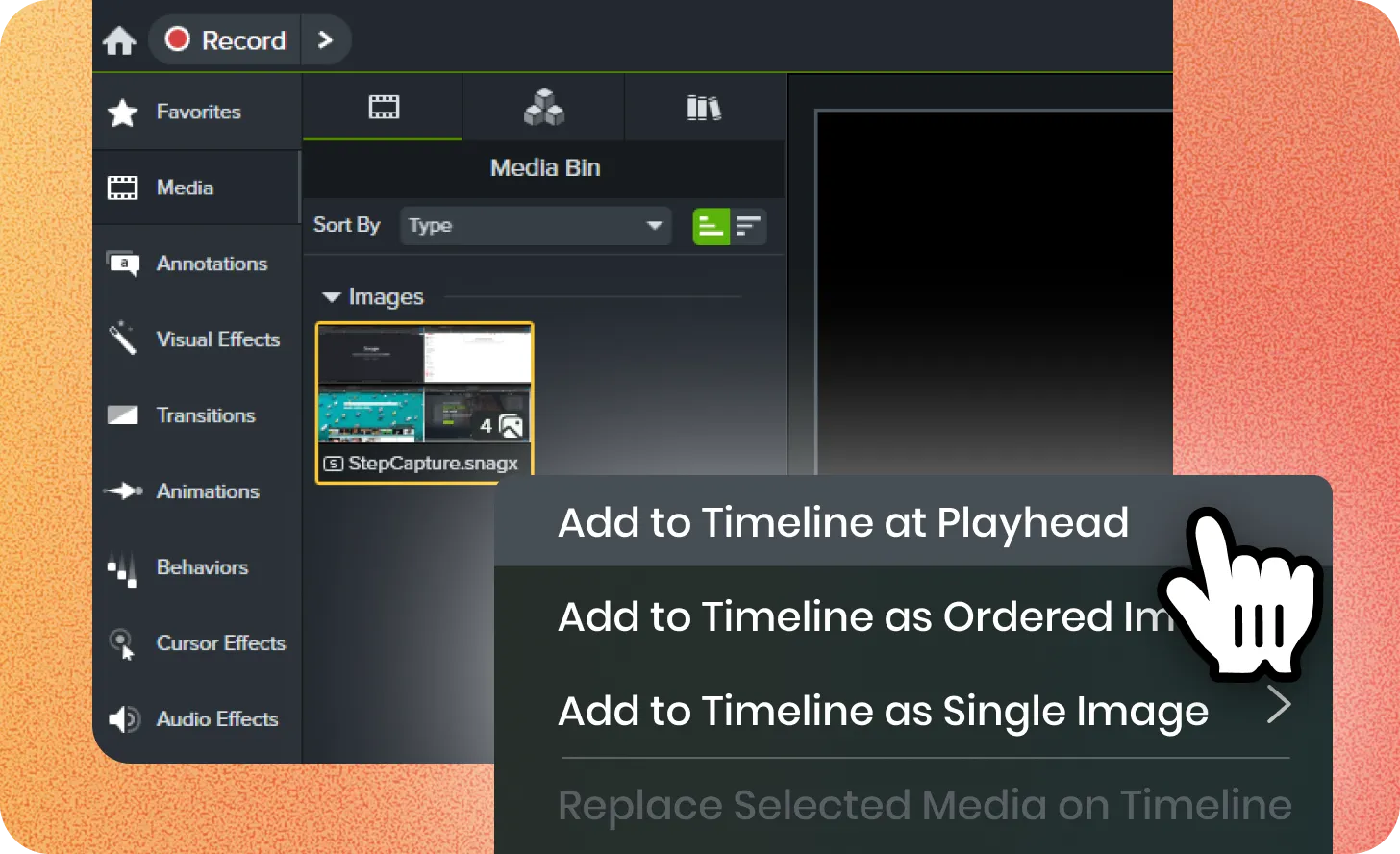
Maintain your training videos as your software evolves. Use the Snagit integration to modify existing images on your Camtasia timeline. Change text, swap icons, or adjust markup with Snagit. The updated file replaces the old version on your timeline instantly. This workflow ensures your tutorials remain accurate with minimal effort.