









Audio Recorder for Clear, Editable Tracks
Record your microphone and computer audio on separate tracks, so one bad noise doesn’t mean starting over.
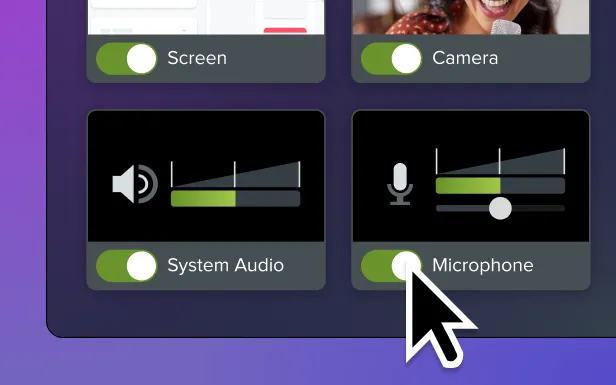
Whether you’re recording software demos, online training, presentations, or tutorials, interruptions happen. As an audio recorder, Camtasia Editor captures your microphone input and system audio independently, giving you the flexibility to fix a single problem instead of re-recording the entire video.
One messy track ruins the take
Nothing kills momentum like realizing your recording is unusable because one sound ended up in the wrong place. When your voice and computer audio are mixed into a single track, even a minor mistake can force you to start over. Maybe your phone rang while you were explaining a key concept. Maybe someone walked into the room. Maybe Windows decided it was the perfect time for a notification. Many creators resort to complicated workarounds, like installing loopback drivers, enabling Stereo Mix, recording audio separately, or manually syncing tracks during editing. Those solutions don’t just add technical complexity, they add more opportunities for something to go wrong. Instead of spending time troubleshooting your recording setup or recreating a take that was almost perfect, you could be editing and publishing.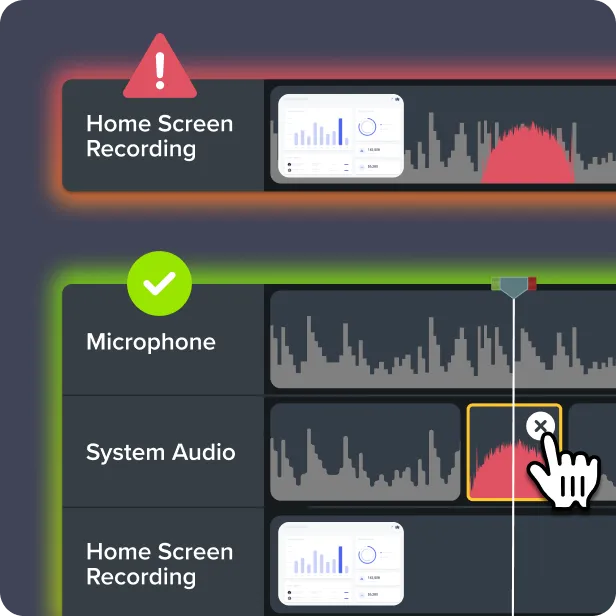
Clear audio keeps people watching
People will forgive an occasional visual hiccup. They won’t stick around for audio that’s difficult to understand. Whether you’re creating employee training, customer education, product demonstrations, or YouTube tutorials, clear narration helps your audience stay focused on the message. Recording your voice separately gives you far more control during editing. You can reduce background noise, adjust volume levels, or fine-tune your narration without touching your screen recording or system audio. The result is content that sounds more polished, feels more professional, and is easier for viewers to follow from beginning to end.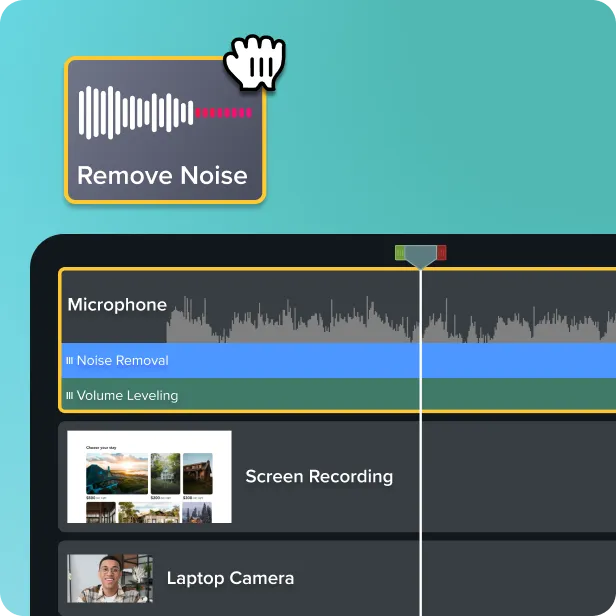
Try the audio recorder free
A small interruption shouldn’t cost you an otherwise good take.
With Camtasia Editor, you can keep what worked, fix what didn’t, and move from recording to finished video without starting over. Spend less time troubleshooting and more time getting your content ready to share.
