


Add a speech bubble to your projects
Snagit’s powerful callout tool feature makes your screenshots and images stand out.
ADD A SPEECH BUBBLE IN SNAGIT
How to add a speech bubble to a photo or document
Whether you’re creating how-to guides, presentations, or tutorials, Snagit’s Callout Tool adds clarity and context to your visuals. With a variety of customizable options, Snagit makes it easy to emphasize key areas and communicate your message effectively.
1
Step 1: Capture or upload your image
Use Snagit to take a screenshot or import an image that needs added context. You can also upload a document in image format that needs edits.
2
Step 2: Add a speech bubble
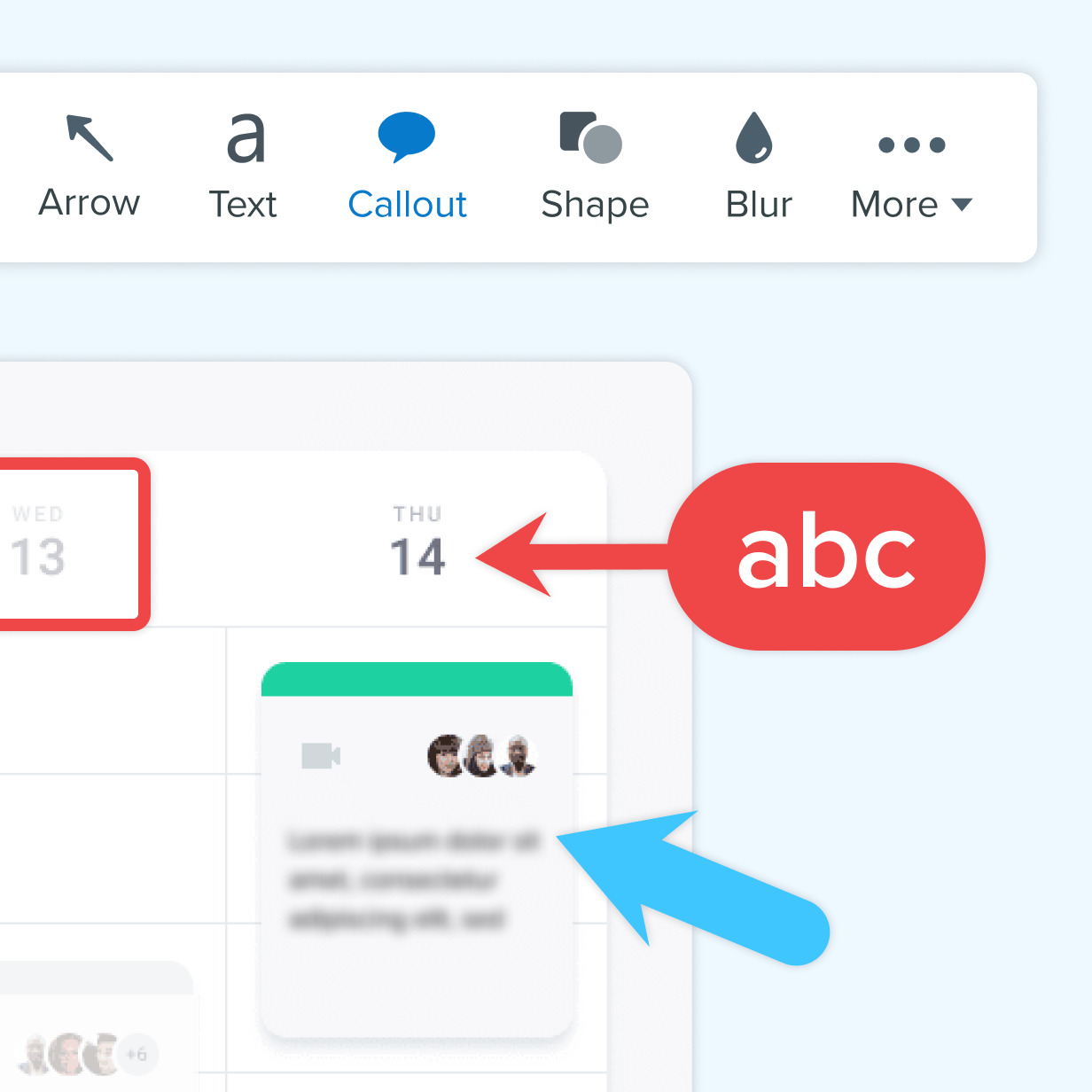
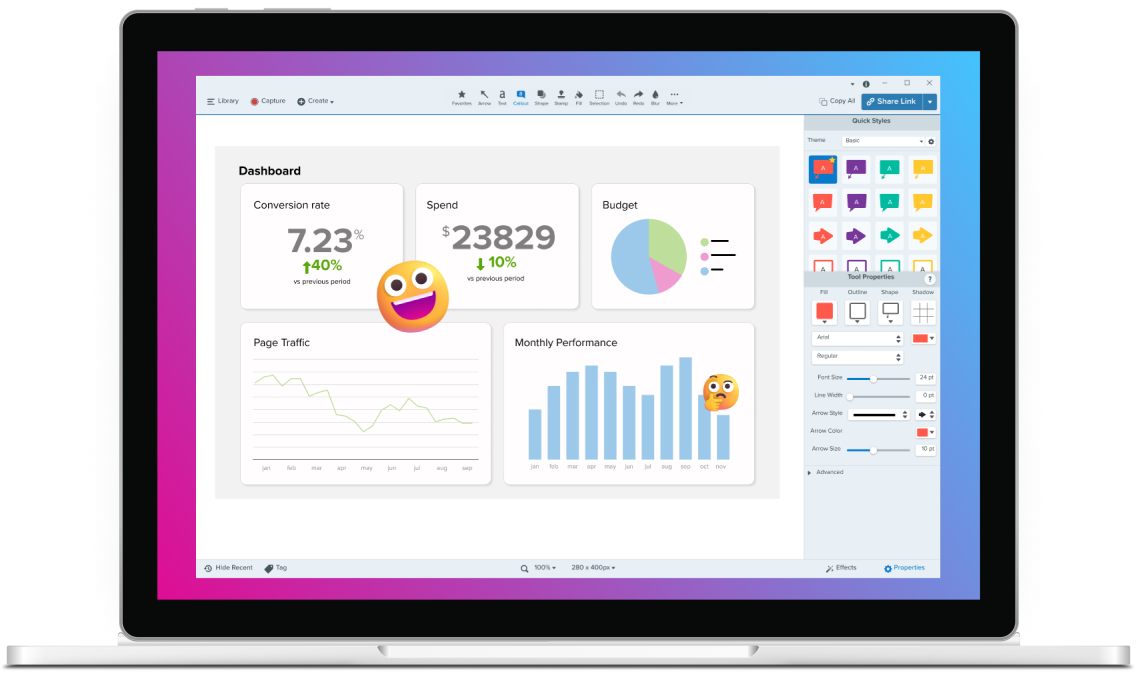
Open the Snagit Editor and choose the Callout option from the toolbar. Explore a wide range of styles and colors to match your image. You can even create multi-tail callouts to point out multiple sections of your image.
3
Step 3: Add your text
Type your message directly into the speech bubble. Snagit’s flexible text tool allows you to customize the font, size, and color to match your design.
Why Snagit is the best choice for adding speech bubbles
Wide variety of options
Snagit offers an extensive selection of callouts, arrows, and other shapes. Customize each one to suit your specific needs and ensure your visuals are both clear and attractive.
Focus on details
Use the magnify tool to highlight intricate parts of your image. Pair this with the step tool to ensure your tutorials, how-tos and other documentation are crystal clear.
Create reusable speech bubbles
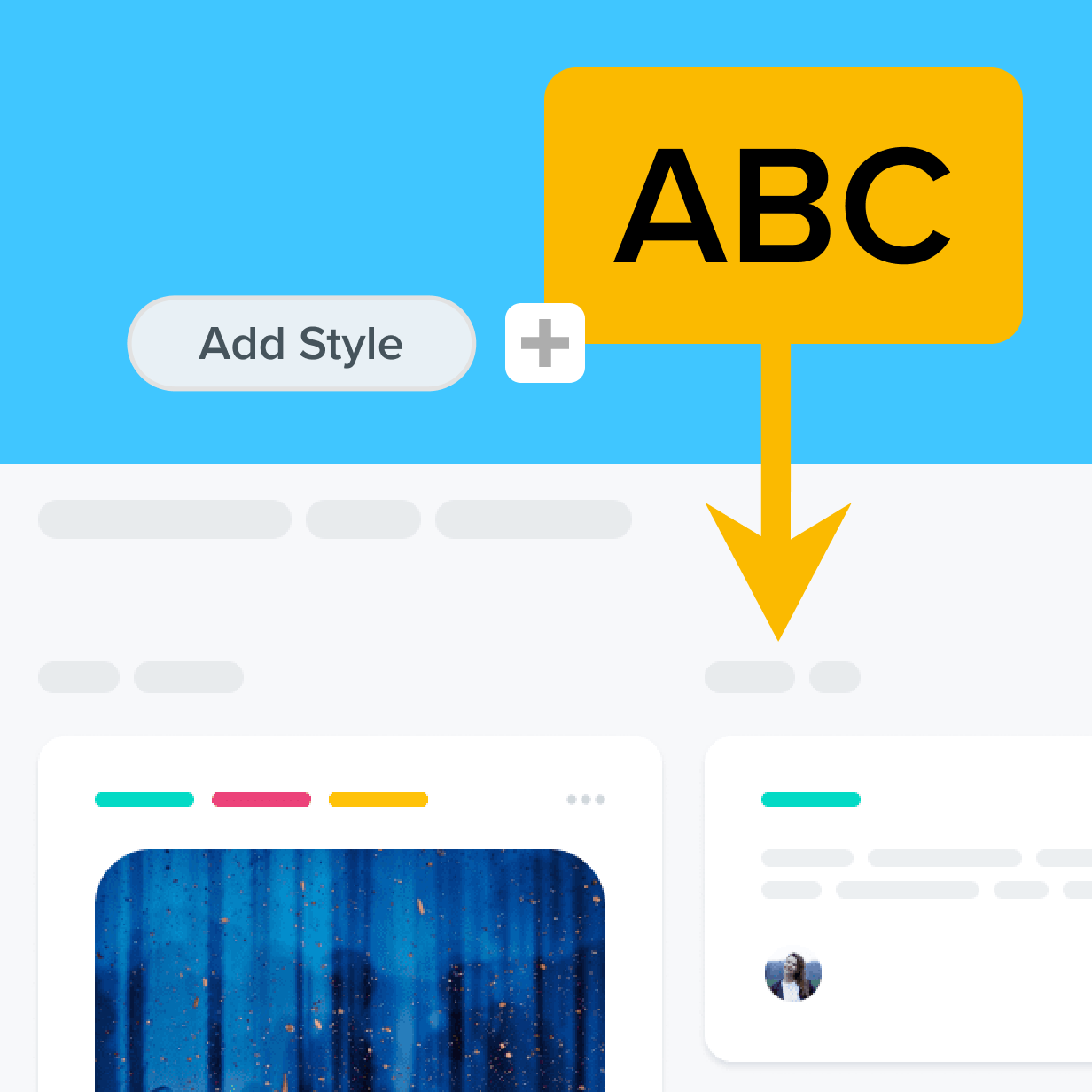
Did you create the perfect callout? Save it as a QuickStyle for easy future reference so all of your documentation has the same style of presentation.
Get started with Camtasia Snagit
FAQ
Yes, Snagit allows you to fully customize the shape, color, and size of speech bubbles. You can also adjust the text style within the bubbles to match your project’s aesthetic.
Absolutely! You can add as many speech bubbles as you need to an image, each with its own unique text and style. This is perfect for detailed explanations or multi-step instructions.
Yes, Snagit allows you to save customized speech bubbles as preset styles, making it easy to apply the same style across multiple projects. This is a great time-saver if you frequently use speech bubbles in your visuals.
Definitely! Snagit includes tools like the magnify feature, arrows, and the step tool to complement your speech bubbles. These features help you create clear and detailed visuals that effectively communicate your message.
Yes, Snagit is trusted by professionals across various industries for its powerful and easy-to-use features. Whether you’re creating training materials, presentations, or marketing content, Snagit’s speech bubbles and other tools will help you produce polished and professional visuals.
Yes, you can easily reposition and resize speech bubbles in Snagit. Simply click on the speech bubble to drag it to a new location or adjust its size to fit your image perfectly.
Snagit provides a variety of pre-designed templates that you can use directly or customize to meet your needs. This makes it quick and easy to add professional-looking bubbles to your visuals.
Snagit allows you to add speech bubbles to your visuals, which can be turned into videos and animated GIFs. This option is great for creating engaging, informative GIFs that include clear communication through text.
Snagit includes alignment tools that help you position accurately. You can snap bubbles to gridlines or align them with other elements on your image for a clean, organized look.
Yes, Snagit allows you to easily copy and paste callouts and other annotations from one image to others. Or save your customized speech bubble styles for reuse whenever you like. Snagit is ideal for creating consistent visuals across a series of screenshots or images.
Check out our tutorial that will walk you through everything you need to know.
Still can’t find what you need? Contact us and we’ll help you out.